I’m working on getting the site/blog/shop up and running, so this one is just a placeholder for now.
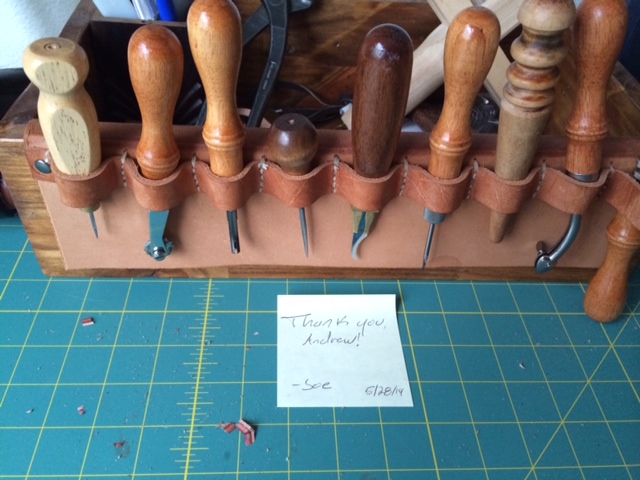
Snapped this picture this morning. Let me know if there is anything else you would like to see. I’ll send you directions on how to measure your waist or an existing belt. Pant size is usually different from belt size, so is an unreliable measurement.
If all looks good to you, here is an article from Facebook’s Help Community on transferring ownership (link):
How can I transfer ownership of a page to another person?


1,449 best answers.If you want to transfer your Facebook PAGE to another person or account (who must have a Facebook profile) you firstly ensure, either (1) that they are your Facebook “Fiend” or (2) they have “Liked” your PAGE.You then go to your PAGE to manage the Admins . . click “Edit Page” > Admin Roles . . . and start typing name so it appears and click on the profile to place it in the box, and then click “Save Changes”.If the name method doesn’t work, try entering their email address in the box as that often works.
And if that doesn’t work try it this way below, as sometimes there is a glitch doing it the “correct” way.
Click > Edit Page . . . and RIGHT-CLICK on “See Banned Users” and “Open in New Tab / Window” . . and when the page arrives change “Banned” to “People who like this”, then find the person there on the list and click “Make Admin”.
ALSO if there are any other BLANK boxes below, then click the “x” next to them and remove them, then do the “Save” and add your password, which is the Admin’s own personal Facebook login password.
You might have to try it several times to make it work.If you make that new Admin a “Manager” they will now have as much control of your PAGE as yourself. (If you are asked for a password use your own personal Facebook login password).
If you want to relinquish your Admin status, just click “Remove Admin” against your name, and if you wish to leave the PAGE completely, just view the PAGE and click “Unlike” . . . ALL IS NOW DONE.
The PAGE is now under control of the new Admin.
Oh !! . . . and tell them if they are ever asked for a password they use their own personal Facebook login password, as do all Admins use their own password.
I hope we can make this work!